Kubernetes
Kubernetes views appear in the app sidebar as Cluster, Workloads, and Services. They are available only when Kubernetes is enabled for the selected Colima profile and kubectl can reach the selected context.
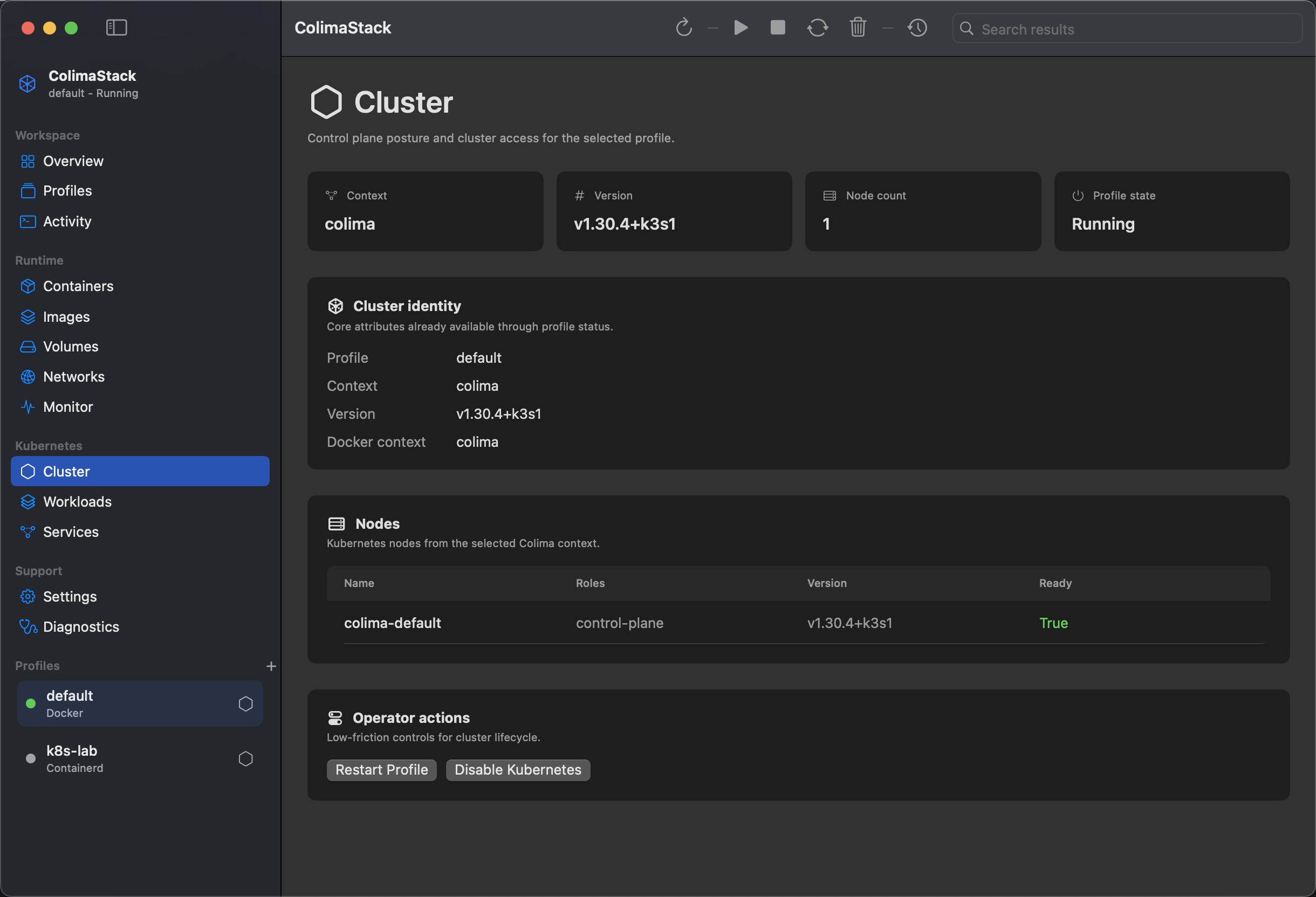
What Cluster shows
Section titled “What Cluster shows”- Kubernetes context.
- Kubernetes version reported by the profile.
- Node count.
- Profile state.
- Cluster identity values.
- Nodes with name, roles, kubelet version, and Ready condition.
How to get data to appear
Section titled “How to get data to appear”- Select a Colima profile.
- Enable Kubernetes in the profile editor or use
Enable KubernetesfromClusteror the menu bar. - Start or restart the profile if required.
- Confirm
kubectlcan reach the context. - Click
Refresh.
Minimal check:
kubectl config current-contextkubectl get nodesAvailable actions
Section titled “Available actions”Enable Kuberneteswhen Kubernetes is disabled.Disable Kuberneteswhen enabled.Restart Profile.- Navigate to
WorkloadsandServices.
Kubernetes resource views are read-only; the app does not create, update, delete, or apply Kubernetes objects.
Empty states
Section titled “Empty states”Cluster state unavailable: Colima diagnostics are unavailable.Select a profile: Kubernetes state is scoped to one profile.Kubernetes is disabled: the selected profile does not have Kubernetes enabled.No nodes reported by kubectl:kubectl get nodes -o jsonreturned no nodes or the command failed.No nodes match the current search: local search filtered the rows.
Source commands
Section titled “Source commands”ColimaStack invokes:
kubectl --context <context> config current-contextkubectl --context <context> get nodes -o jsonkubectl --context <context> get namespaces -o jsonkubectl --context <context> top nodes --no-headersSee Command API, Compatibility, and Diagnostics.