Docker Containers
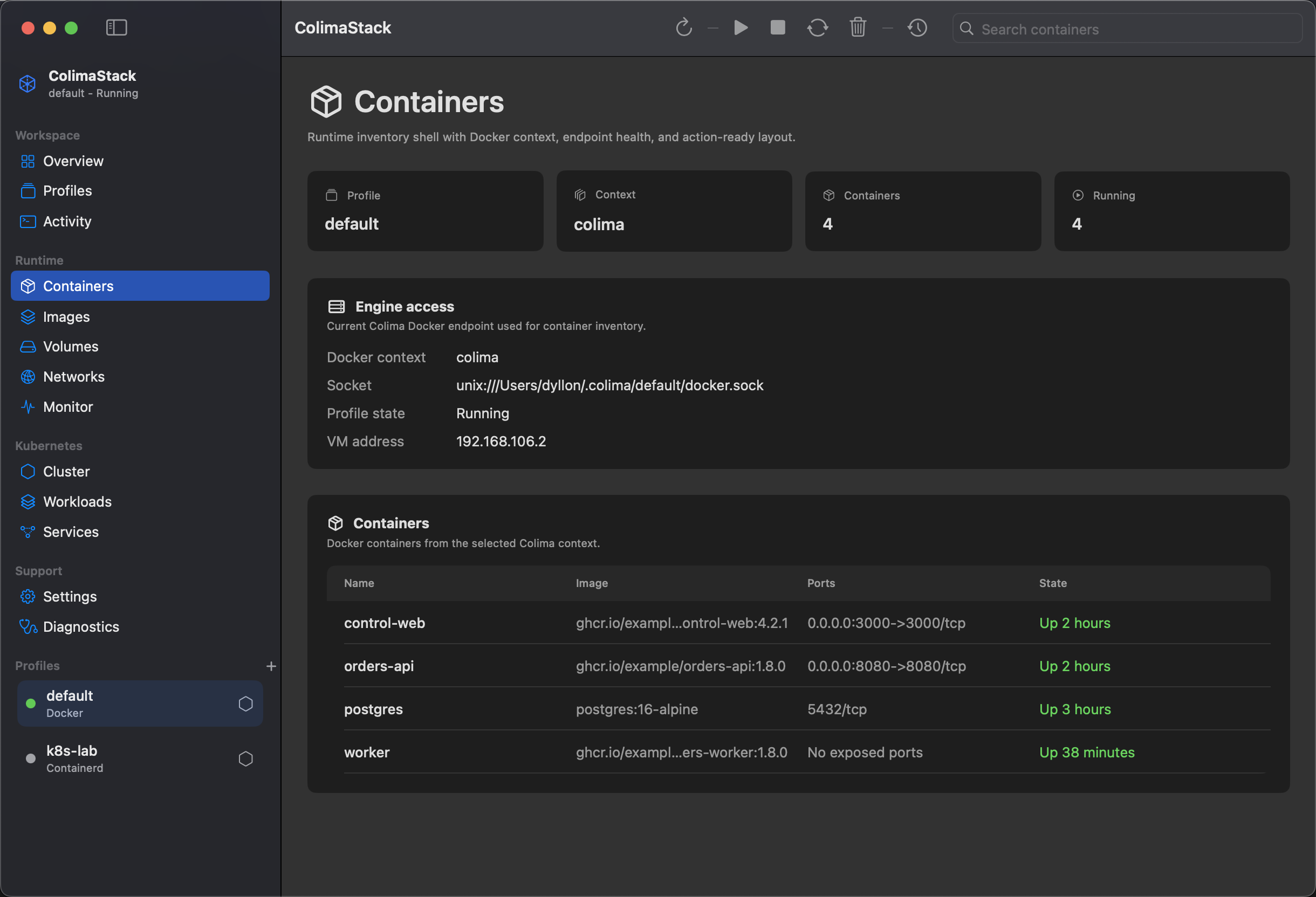
Containers shows Docker containers for the selected running Colima profile, with lifecycle controls, live stats, and a detail inspector for the selected row.
What this view shows
Section titled “What this view shows”- Container name or ID.
- Image.
- Published ports.
- State and status.
- CPU, memory, network, block I/O, and PID stats when
docker stats --no-streamreturns data. - Compose project and service grouping when Docker Compose labels are present.
- Running container count.
- Docker context, socket, profile state, and VM address.
Running containers are highlighted as healthy. dead containers create a backend warning. Stopped, paused, exited, or restarting containers can still appear because the app lists all containers.
Selecting a row opens the inspector:
Overview: identity, image, command, status, ports, networks, mounts, labels, size, and exit metadata when Docker reports it.Logs: command-backed container logs with timestamps, tail count, search, copy, clear, and pause controls.Inspect: formatteddocker inspectJSON with search and copy.Stats: the matchingdocker stats --no-streamrecord.Terminal: a generateddocker exec -it <container> /bin/shcommand that can be copied into a terminal.Files: bind mounts and Docker volume references, including Finder links for host paths when available.
How to get data to appear
Section titled “How to get data to appear”- Select a Docker-backed Colima profile.
- Start it with
Start. - Run or create containers in that Docker context.
- Click
Refresh.
Quick Start sample:
docker run -d --name colimastack-quickstart -p 8080:80 nginx:alpineIf you are using a named profile, use the matching context:
docker --context colima-<profile> ps --allAvailable actions
Section titled “Available actions”Row controls and the row menu expose state-aware container actions:
- Start stopped or exited containers.
- Stop, restart, pause, kill, or open a shell command for running containers.
- Resume paused containers.
- Load logs and inspect JSON into the selected-container inspector.
- Open published localhost ports in the browser.
- Copy container ID, image, ports, or generated terminal command.
- Delete a container after typing the container name or ID exactly.
Compose groups are summarized above the table when labels such as com.docker.compose.project and com.docker.compose.service are present, so related containers can be scanned together before acting on individual rows.
Empty states
Section titled “Empty states”Runtime not available: Colima diagnostics are not available.Choose a profile: no profile is selected.Docker endpoint unavailable: Docker CLI or the selected context is unavailable.No containers: Docker is available, but the selected context has no containers.No matching containers: the local search filter hides all rows.
Source command
Section titled “Source command”ColimaStack invokes:
docker --context <context> ps --all --no-trunc --format "{{json .}}"Lifecycle, logs, and inspect actions use the same selected Docker context:
docker --context <context> start|stop|restart|pause|unpause|kill|rm <container>docker --context <context> logs [--timestamps] --tail <count> <container>docker --context <context> inspect <container>docker --context <context> exec -it <container> /bin/shSee Command API for context and error behavior. Use Diagnostics if Docker is unavailable.